What an extension is
An extension adds to xTalk without changing the engine. OXT-Beyond comes with dozens, and loads every one in its Extensions folder as the IDE starts, so they are ready before your first line. They come in three kinds:
- Libraries add commands and functions: time zones, QR codes, comparing text, a web server, signing in with OAuth2. Once loaded, you call them just as you call
putorthe date. - Widgets are new kinds of control, such as a switch, a tree view or a chart. They sit in the Tools palette under the classic controls, and you drag them onto a card the same way.
- The xTalk Suite is OXT-Beyond's own family of libraries, each a thin layer over a well-known native library: SodiumXT for cryptography, CoinXT for Bitcoin and Ethereum keys, NostrXT for the Nostr network, ENet, dataChannelXT and TorrentXT for peer-to-peer networking, OnionXT for Tor, and Box2Dxt for physics.
Some extensions are written in xTalk Builder (Extensions in xTalk Builder) and compiled; others, the script libraries, are plain xTalk in a stack. To a script that calls them, the two look the same. The lessons after this one take them a few at a time, and every example in them runs on the engine with the extension it needs.
Finding them
Choose Tools > Extension Manager to see what is installed: each library and widget with its name, version and author. Its Install extension button adds one that someone gives you as a package, a .lce file, and the IDE loads it at once. Every command, function, property and message an extension adds has its page in the Dictionary (Help > Dictionary), as the language's own words do.
A script can ask what is loaded. the loadedExtensions lists the extensions written in xTalk Builder, a line each, by their id: a name in reverse-domain form, such as com.livecode.library.json, that no two extensions share:
put "com.livecode.library.json" is among the lines of the loadedExtensions
put "com.livecode.library.timezone" is among the lines of the loadedExtensions
put "com.example.library.nothing" is among the lines of the loadedExtensionstrue true false
A program that needs an extension can check like this as it starts, and say so plainly when one is missing, rather than stop at the first call with an error.
Calling a library
A library's handlers need nothing to set up. The MIME library knows which type a web server or an email gives each kind of file, the label that says "this is a PNG picture":
put mimeTheMIMETypeOfExtension("png")
put mimeTheMIMETypeOfExtension("html")
put mimeTheMIMETypeOfExtension("mp3")
put mimeTheMIMETypeOfExtension("nonsense")image/png text/html audio/mpeg application/octet-stream
An unknown ending gets application/octet-stream, the type that means "just bytes". The page Text tools has more of this library.
A script library is a stack, and the IDE puts its script into the backScripts as it loads it, at the very end of the message path. So a handler of your own with the same name comes first, and wins:
function mimeTheMIMETypeOfExtension pExtension
   return "my own answer"
end mimeTheMIMETypeOfExtension

put mimeTheMIMETypeOfExtension("png")
put "com.livecode.library.mime" is in the backScriptsmy own answer true
That lets you change what a library does for one stack, but it is also an easy mistake to make by accident. Each library starts its handlers' names with its own few letters (mime, sx, b2k), and your own should not.
A widget from the Tools palette
The widgets are at the bottom of the Tools palette, below the classic controls. Build a card with one:
- Make a new stack, or go to an empty card. In Edit mode, scroll the Tools palette down to its widgets and drag a Switch Button onto the top left of the card.
- Double-click it to open the Property Inspector, and name it
Dark mode. Its other sections are the switch's own properties: whether it is on, its colours and its theme.
A widget is a control like any other: it has a name, a rect and a script, and the Message Box can ask about it. Its kind is the id of the extension that draws it, and its own properties are set as any property is:
put the kind of widget "Dark mode"
put the number of widgets
set the highlight of widget "Dark mode" to true
put the highlight of widget "Dark mode"com.livecode.widget.switchbutton 1 true

Click the switch in Run mode and it turns over by itself, and sends a message, hiliteChanged, as a button sends mouseUp. Each widget's page in the Dictionary lists its messages. Open the switch's script and handle it:
on hiliteChanged
   if the highlight of me then
      set the backgroundColor of this card to "#1b2435"
   else
      set the backgroundColor of this card to empty
   end if
end hiliteChanged
A message can also be sent from the Message Box, which tries a handler without clicking:
set the highlight of widget "Dark mode" to true
send "hiliteChanged" to widget "Dark mode"
put the backgroundColor of this card#1b2435

A widget from a script
create widget makes one from a script, given a name and the kind, as Making controls from a script makes a button:
repeat with tIndex = 1 to 3
   create widget ("Option" && tIndex) as "com.livecode.widget.switchbutton"
   set the rect of it to 40, 30 + 50 * tIndex, 100, 62 + 50 * tIndex
   set the highlight of it to (tIndex is not 2)
end repeat
put the number of widgets
put the highlight of widget "Option 2"
put the short name of widget 33 false Option 3
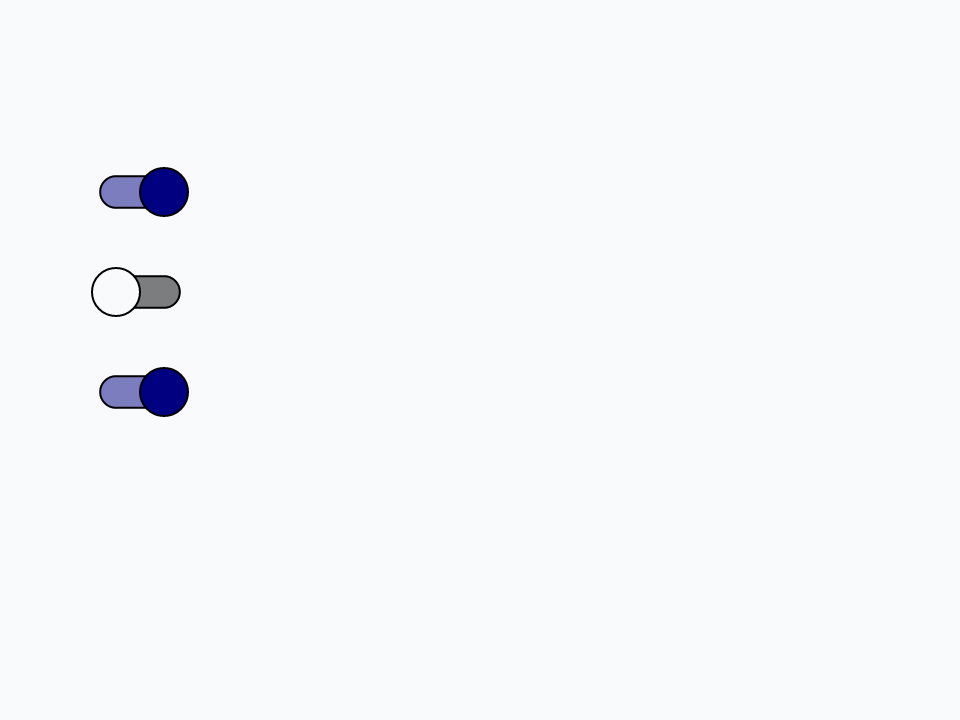
A widget whose extension is not loaded cannot be made: create widget stops with an error, which is why a careful program checks the loadedExtensions first.
Extensions of your own
An extension you write, or download as source, is compiled in the Extension Builder (Tools > Extension Builder), which can also install it. A script can load a compiled module itself with load extension from file and drop it with unload extension, as Extensions in xTalk Builder shows. A standalone carries only the extensions ticked on the Inclusions pane of its settings (Shipping your program), so tick every one your program uses.
Try it yourself
Write a function missingExtensions that takes a list of extension ids, a line each, and returns those that are not loaded, so a program can tell its user what to install.
Show a solution
function missingExtensions pIds
   local tMissing
   repeat for each line tId in pIds
      if tId is not among the lines of the loadedExtensions then
         put tId & return after tMissing
      end if
   end repeat
   return line 1 to -1 of tMissing
end missingExtensions

put "com.livecode.library.json" & return & "com.example.widget.gauge" & return & "com.livecode.library.timezone" into tWanted
put missingExtensions(tWanted)
put the number of lines of missingExtensions("com.livecode.library.json")com.example.widget.gauge 0
Words in this lesson
the loadedExtensionsExtension Managerlibrarywidgetcreate widgetthe kindthe backScriptsload extensionunload extensionEach one finds every lesson that uses it. The Dictionary has the whole story of each, with its syntax and more examples.