A stack of cards
A stack shows one card at a time. Each card is a screen of its own: a page of a book, a step of a quiz, a record in an address list. Object > New Card adds a card after the one you are on and goes to it, Object > Card Inspector names it, and the View menu moves between them: Go First, Go Prev, Go Next and Go Last. In a script, create card adds one and go moves.
- Start a new stack. In the Card Inspector (Object > Card Inspector), name its card
Home. - Choose Object > New Card and name the new card
Help; then again, and name the third cardAbout. You are left onAbout.
put the number of cards
put the short name of this card
go to card "Home"
put the short name of this card
go next card
put the short name of this card
go last card
put the short name of this card
go next card
put the short name of this card3 About Home Help About Home
go next card on the last card goes round to the first, and go previous card on the first to the last, so a stack is a ring of cards. You can also go first card, go to card 2, or go back to the card you were on before.
Which card is this?
- Start a new stack with three cards (Object > New Card twice), and name them
Page 1,Page 2andPage 3in the Card Inspector.
put the cardNames of this stack
go to card "Page 2"
put the number of this card
put the short name of this cardPage 1 Page 2 Page 3 2 Page 2
the number of this card is its place in the stack, and the cardNames lists every card's name, a line each. The Project Browser (Tools > Project Browser) shows the same list, and goes to a card when you double-click it.
Each card gets ready: openCard
Going to a card sends it openCard, and leaving it sends closeCard. A handler in a card's script hears them only for that card; one in the stack's script hears them for every card that does not handle them itself. On a stack of three cards, put this in the stack's script (Object > Stack Script):
- Start a new stack with three cards (Object > New Card twice), and go back to the first (View > Go First).
on openCard
   put "openCard on card" && the number of this card
end openCardgo next card
go next card
go first cardopenCard on card 2 openCard on card 3 openCard on card 1
Controls on every card: backgrounds
Many stacks want the same controls on every card: a title, Next and Back buttons, a field for each part of a record. Put them in a group and tick Behave like a background in the group's Inspector (its backgroundBehavior): every card you make after it gets the same group. It is one group, placed on many cards.
- Start a new stack. Drag a Field, make it fill most of the card, name it
Text, and set its Text size to 24. Drag a Standard Button to the bottom right corner and name itNext. - Select both and choose Object > Group Selected. Name the group
Page, and in its Basic section tick Behave like a background. - In Run mode, type
First pageinto the field. Choose Object > New Card: the new card has the field and the button too. TypeSecond pageinto the field there.
put the number of this card
put the number of controls
put field "Text"
go to card 1
put field "Text"2 3 Second page First page
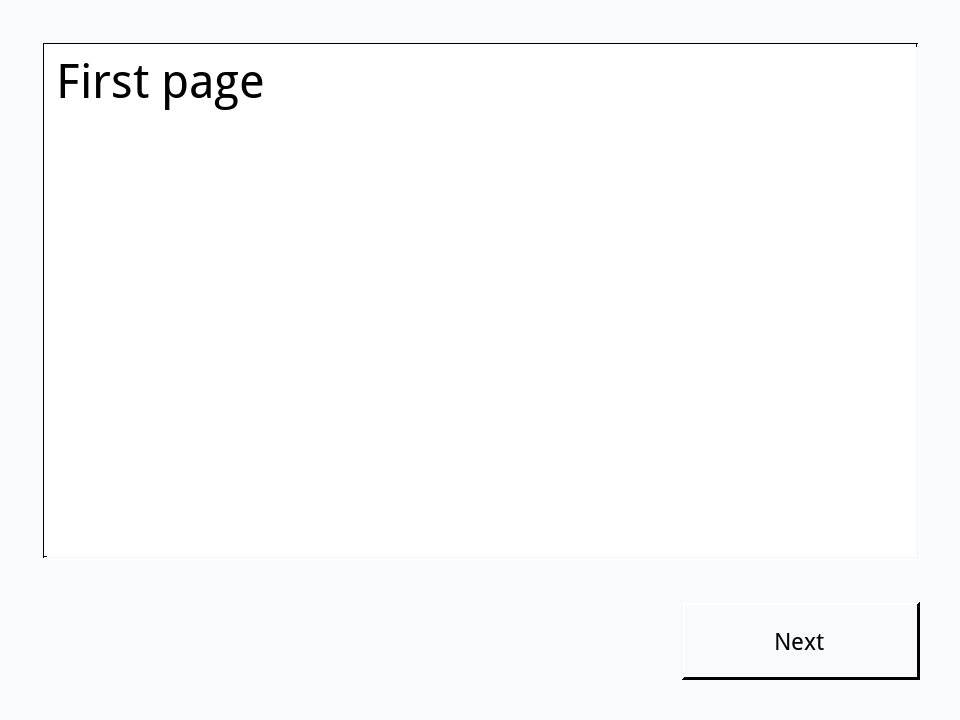
Three controls: the field, the button and the group that holds them. The field is shared, but each card keeps its own text in it: that is what a field's sharedText (Share text), false unless you change it, means. So a stack of cards with a background is a little database, one record a card, the way HyperCard's address books worked.
Tick Share text for a field that should show the same text on every card, like a heading:
- Start a new stack. Drag a Field, name it
Heading, and tick Share text in its Basic section. - Group it (Object > Group Selected) and tick the group's Behave like a background.
- Type
My recipesinto the field in Run mode, then add two cards with Object > New Card.
put the number of this card
put field "Heading"
go first card
put field "Heading"3 My recipes My recipes
Buttons that move
The Next button of the background above needs a script. Back on its first card (View > Go First), give it this one and click it twice in Run mode:
- The stack with the background
Pagefrom above, on its first card.
on mouseUp
   go next card
   put field "Text"
end mouseUpSecond page First page
The button is on every card, so the same script works from each, and the second click goes round from the last card to the first. visual effect animates the change of card; the effects include dissolve, wipe, push, scroll and reveal, with a direction where it makes sense:
on mouseUp
   visual effect push left fast
   go next card
end mouseUp
A Back button is the same with push right and go previous card, and a Home button just says go first card. Each goes in its own button's script: one script can have only one handler of each name.
Deleting cards
Object > Delete Card removes the card you are on, and delete card does the same from a script, with the controls that are only on it. A stack always keeps at least one card.
- Start a new stack and name its card
Start. Add a card with Object > New Card and name itScratch, then go back to the first (View > Go First).
put the number of cards
delete card "Scratch"
put the number of cards
put the short name of this card2 1 Start
Try it yourself
Build a three-card flash-card stack: a background group with a field Word in large, centred type and a button Next, and the words bonjour, merci and au revoir typed on the three cards. Give Next a script that goes to the next card and puts its word. Then, from the first card, click Next three times.
- Start a new stack. Drag a Field to the middle, name it
Word, set its Text size to 32 and its Text align to center. Drag a Standard Button under it and name itNext. - Group the two and tick Behave like a background. Type
bonjourinto the field. - Add a card with Object > New Card and type
merci; add another and typeau revoir. Go back to the first card.
Show a solution
on mouseUp
   go next card
   put field "Word"
end mouseUpmerci au revoir bonjour
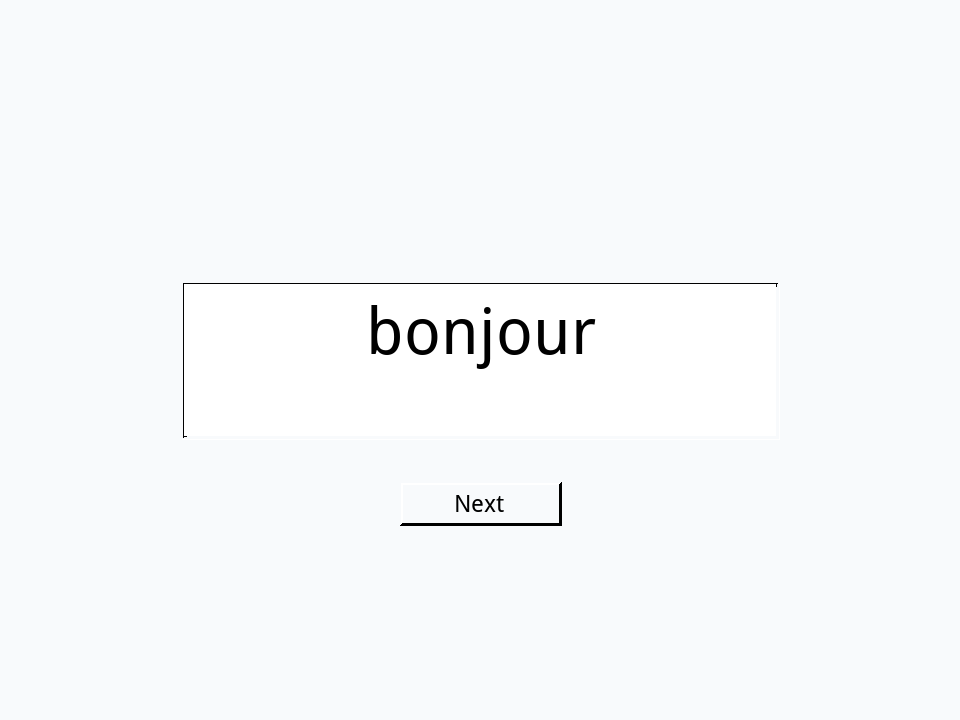
The third click goes round from the last card to the first.
Words in this lesson
cardNew CardCard Inspectorcreate cardgonextpreviousfirstlastbackthe number of this cardcardNamesgroupbackgroundBehaviorsharedTextvisual effectEach one finds every lesson that uses it. The Dictionary has the whole story of each, with its syntax and more examples.