Name, number and id
You point at a control with the mouse. A script points at it with words, in three ways:
- By name:
button "OK", the name you gave it in the Property Inspector. Easy to read, and it survives moving the control about. Two controls can share a name, though, and then xTalk finds the first. - By number:
button 2, orthe last field. Handy in loops; it changes when controls are added, deleted or reordered. - By id:
button id 1003. A number the engine gives each object when it is made, never reused in that stack, and never changed.
- On a new card, drag a Standard Button and name it
OK.
put the short name of button 1
put the short name of button id (the id of button "OK")
put the short name of the last button
put the id of button "OK" is a numberOK OK OK true
Type put the id of button "OK" to see its id: a number like 1003, which depends on how many objects the stack has made before.
Going through every control
Numbers make it easy to visit every control on a card. word 1 of the name of a control says what kind it is. This button lists every control on its card, itself included:
- On a new card, drag a Standard Button and name it
Save. - Drag a Field under it and name it
Notes. - Drag a Line Graphic (it keeps the palette's name,
Line). - Last, drag another Standard Button and name it
List.
on mouseUp
   repeat with i = 1 to the number of controls
      put the short name of control i && "is a" && word 1 of the name of control i & return after tList
   end repeat
   delete the last char of tList
   put tList
end mouseUpSave is a button Notes is a field Line is a graphic List is a button
The loop collects a line for each control in a variable, and puts it once at the end, so the Message Box shows all four lines together. delete the last char takes off the return after the last line.
The long id: a reference you can keep
The long id of an object says exactly where it is: its id, its card's and its stack's. It is the most reliable reference there is, and since it is just text, you can keep it in a variable and use the variable wherever an object can go.
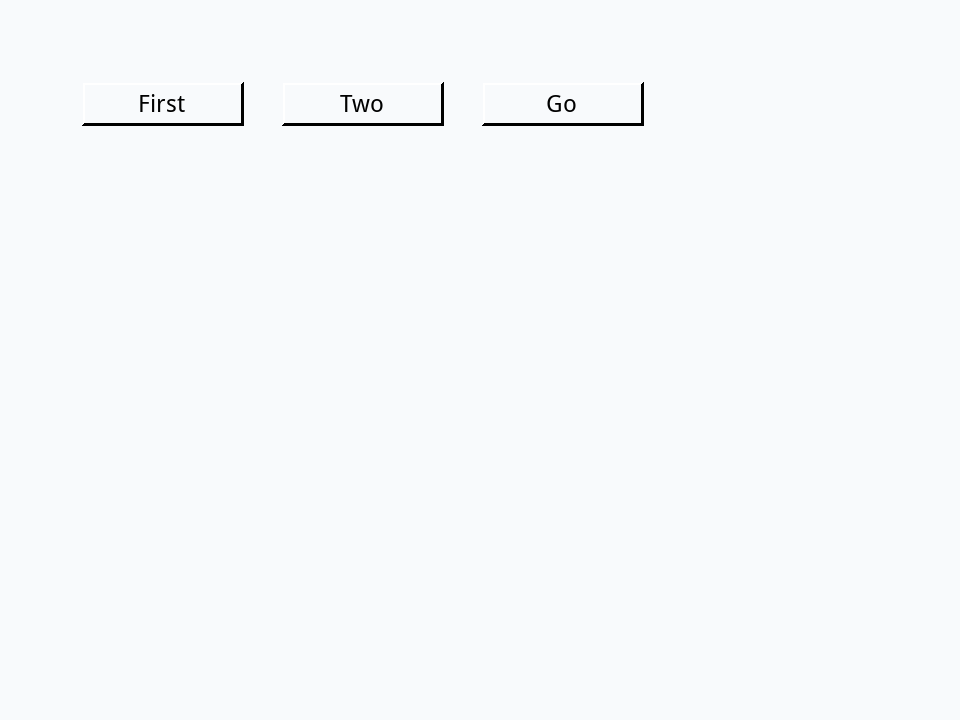
- On a new card, drag three Standard Buttons in a row and name them
One,TwoandGo.
on mouseUp
   put the long id of button "One" into tButton
   set the label of tButton to "First"
   put word 1 of tButton && the short name of tButton && "now says" && the label of button 1
end mouseUpbutton One now says First
That is what handlers usually pass to each other when they work on an object (and what it holds after create). To see one, type put the long id of button "One" in the Message Box. A reference you build yourself as text works the same way; put this in the script of the button Two:
on mouseUp
   put "button" && quote & "One" & quote into tRef
   set the label of tRef to "Hi"
   put tRef && "now says" && the label of button "One"
end mouseUpbutton "One" now says Hi
Does it exist?
there is a, which you met in the last lessons, and the function exists both say whether a reference points at something. Back on the card with the button OK:
put exists(button "OK")
put exists(button "Cancel")
put there is a control "OK"true false true
Me, the target and the owner
Three words point at objects from where a script runs:
meis the object whose script is running. A button'smouseUphandler canset the label of mewithout knowing its own name, so the same script works in any button.the targetis the object a message was first sent to: the button that was clicked, even when the handler that runs is in the card's script (The message path).the ownerof an object is what holds it: a control's card (or its group), a card's stack.
- On a new card, drag two Standard Buttons and name them
RedandBlue. Leave their scripts empty. - Open the card's script with Object > Card Script.
on mouseUp
   put "You clicked" && the short name of the target
end mouseUpYou clicked Red You clicked Blue
Neither button has a script of its own, so the mouseUp each click sends goes on to the card, whose script handles it. One handler serves every button, and the target tells them apart. (Click the card itself, away from the buttons, and it names the card.) The lesson The message path explains this journey.
put word 1 of the owner of button "Red"
put word 1 of the owner of this card
put the number of cardscard stack 1
Objects somewhere else
A reference with no card or stack means the current card of the current stack. Add of to reach further: field "Score" of card "Results", button 1 of card 3 of stack "Tools". You can read and set the properties of objects on any card of any open stack without going there.
- On a new card, drag a Field and name it
Total. - Choose Object > New Card. In the Card Inspector (Object > Card Inspector) name the new card
Results, then drag a Field onto it and name itScore. - Go back to the first card with View > Go Prev.
put 42 into field "Score" of card "Results"
put the number of fields
put the number of cards
put field "Score" of card "Results"1 2 42
The first card has one field; the 42 went to the other card's field without leaving this one. Choose View > Go Next to see it there.
Try it yourself
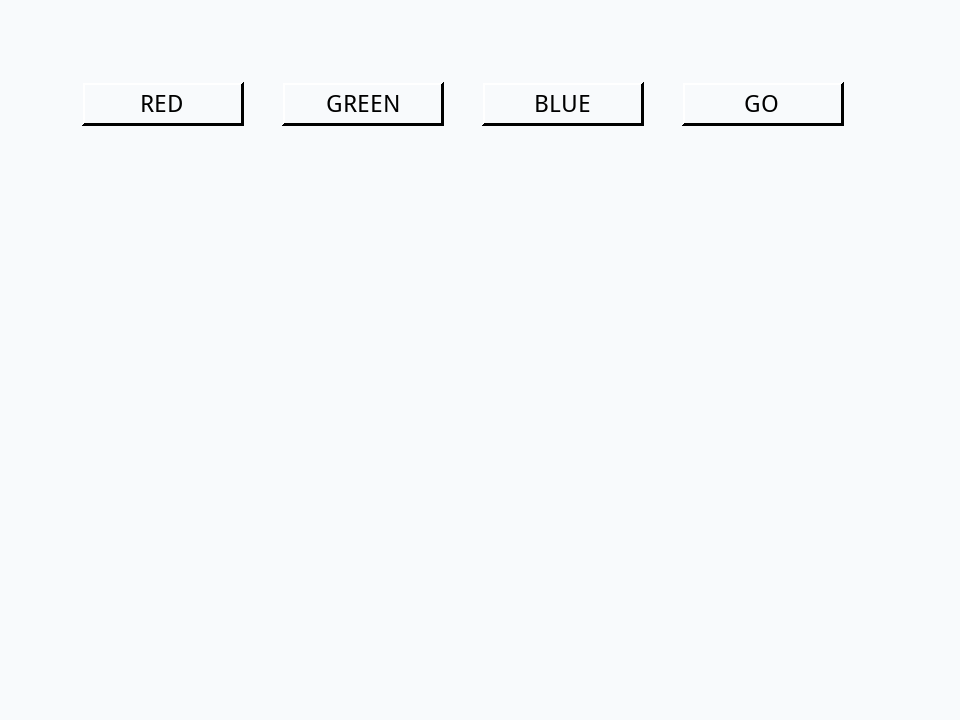
On a new card, drag four Standard Buttons and name them Red, Green, Blue and Go. Give Go a script that, in a loop over the number of buttons, sets each button's label to its name in capitals, and then puts the labels, with commas between them.
- Drag four Standard Buttons in a row and name them
Red,Green,BlueandGo.
Show a solution
on mouseUp
   repeat with i = 1 to the number of buttons
      set the label of button i to toUpper(the short name of button i)
      put the label of button i & comma after tLabels
   end repeat
   delete the last char of tLabels
   put tLabels
end mouseUpRED,GREEN,BLUE,GO
Words in this lesson
Each one finds every lesson that uses it. The Dictionary has the whole story of each, with its syntax and more examples.