A card of choices
Classic buttons can be radio buttons and check boxes (Buttons and menus), but phones and today's programs have taught people other shapes for choosing: a row of segments, a switch that slides, a swatch of colour. These are widgets (Using extensions), and they are dragged onto a card from the Tools palette like any control. Build a card that styles a line of text:
- Make a new stack, or go to an empty card. In Edit mode, scroll the Tools palette down to its widgets and drag a Segmented Control to the top left of the card. Double-click it, name it
Size, and in its Property Inspector set the labels of its three segments toSmall,MediumandLarge. - Drag a Switch Button under it, and name it
Bold. - Drag a Color Swatch to the right of the switch, and name it
Ink. - Drag a classic Field across the card under them, name it
Sample, and typeHello thereinto it.
One of a few: the Segmented Control
A Segmented Control is a row of buttons joined into one, of which one is lit, like radio buttons that take less room. Each segment has a label, the word the reader sees, and a name, for scripts. hilitedItems is the number of the lit segment, and hilitedItemNames its name:
put the itemLabels of widget "Size"
put the itemNames of widget "Size"
set the hilitedItems of widget "Size" to 2
put the hilitedItems of widget "Size"
put the hilitedItemNames of widget "Size"Small,Medium,Large segment1,segment2,segment3 2 segment2
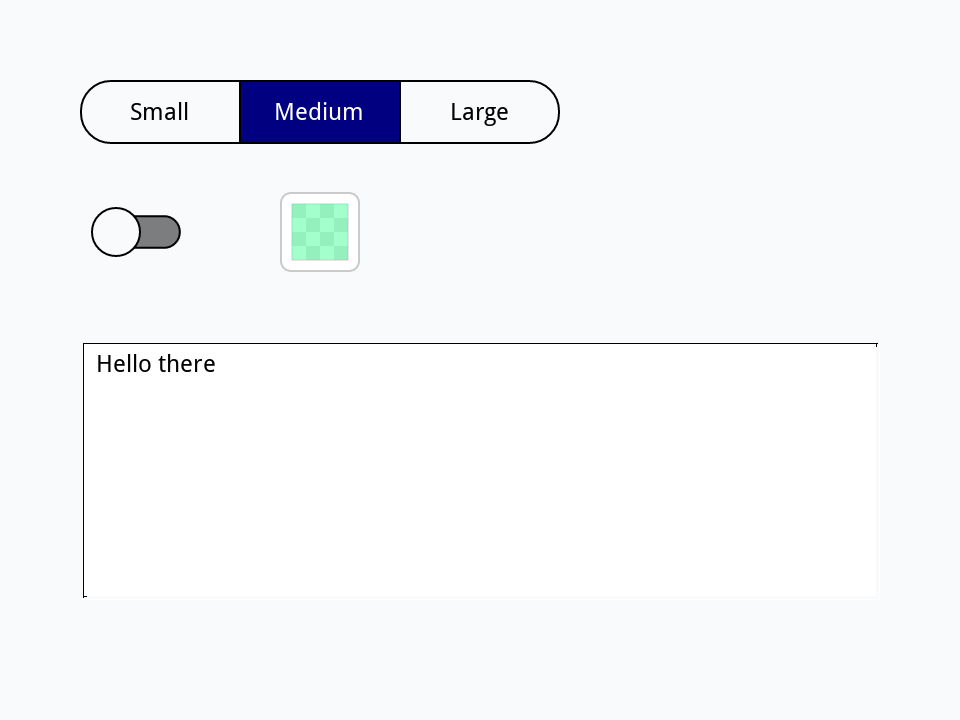
The names are made up for you as segment1 and so on; give them names of your own in the Property Inspector when a script will use them. A click on a segment lights it and sends hiliteChanged, and so does setting hilitedItems from a script. Put this in the Segmented Control's script:
on hiliteChanged
   set the textSize of field "Sample" to item (the hilitedItems of me) of "12,20,32"
end hiliteChanged
In Run mode a click on Large makes the text big. The Message Box can do the same:
set the hilitedItems of widget "Size" to 3
wait 0 milliseconds with messages
put the textSize of field "Sample"32
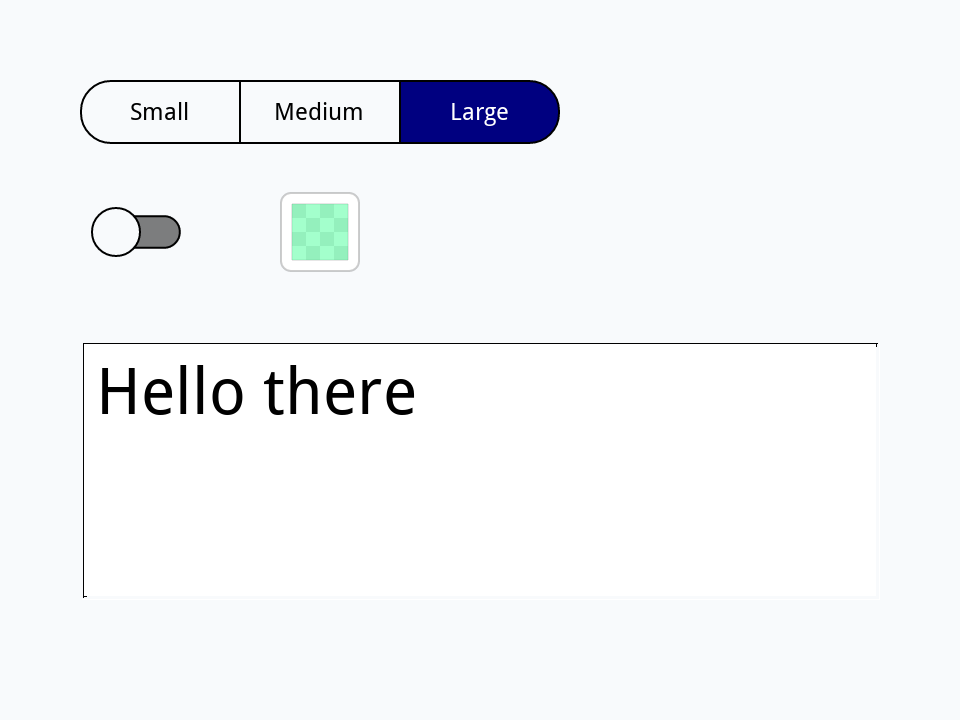
A widget sends its messages once the script that changed it has finished, not at the moment it changes, so the handler has not run yet on the line straight after the set. wait 0 milliseconds with messages lets the message through first. A script that changes a widget and then needs what its handler did must do the same; lines typed into the Message Box one at a time each finish before the next, so there it happens by itself.
Set multipleHilites to true and any number of segments can be lit at once, like check boxes, with hilitedItems a list such as 1,3. Set itemStyle to icons and the segments show itemIcons instead of words, as the Property Inspector's own text alignment does.
On or off: the Switch Button
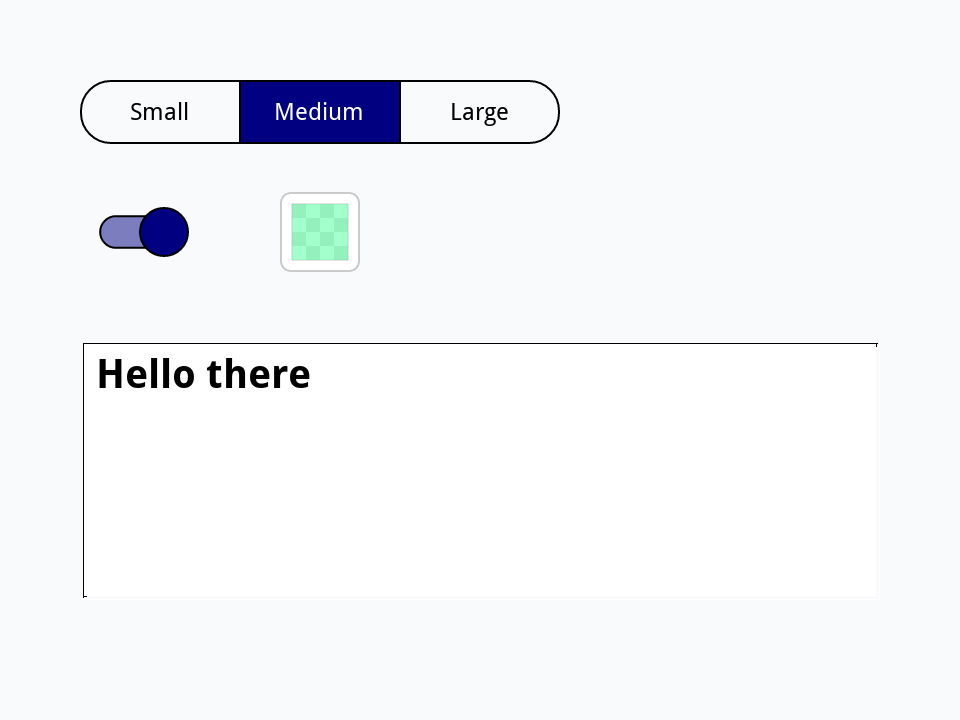
A Switch Button is a check box that slides. Its highlight is true when it is on. A click turns it over and sends hiliteChanged; setting its highlight from a script does not, so send the message too when a script should act as a click. Put this in the switch's script:
on hiliteChanged
   if the highlight of me then
      set the textStyle of field "Sample" to "bold"
   else
      set the textStyle of field "Sample" to "plain"
   end if
end hiliteChangedset the hilitedItems of widget "Size" to 2
set the highlight of widget "Bold" to true
wait 0 milliseconds with messages
put the textStyle of field "Sample" is "bold"
send "hiliteChanged" to widget "Bold"
put the textStyle of field "Sample" is "bold"false true
A colour: the Color Swatch
A Color Swatch shows a colour, its swatchColor: red, green, blue and an alpha, how solid it is, each from 0 to 255. It does not choose a colour by itself: a click sends it mouseUp, and its script asks with answer color, the system's colour picker (Dialogs). Put this in the swatch's script:
on mouseUp
   answer color with item 1 to 3 of the swatchColor of me
   if it is empty then exit mouseUp
   set the swatchColor of me to it
   set the textColor of field "Sample" to it
end mouseUp
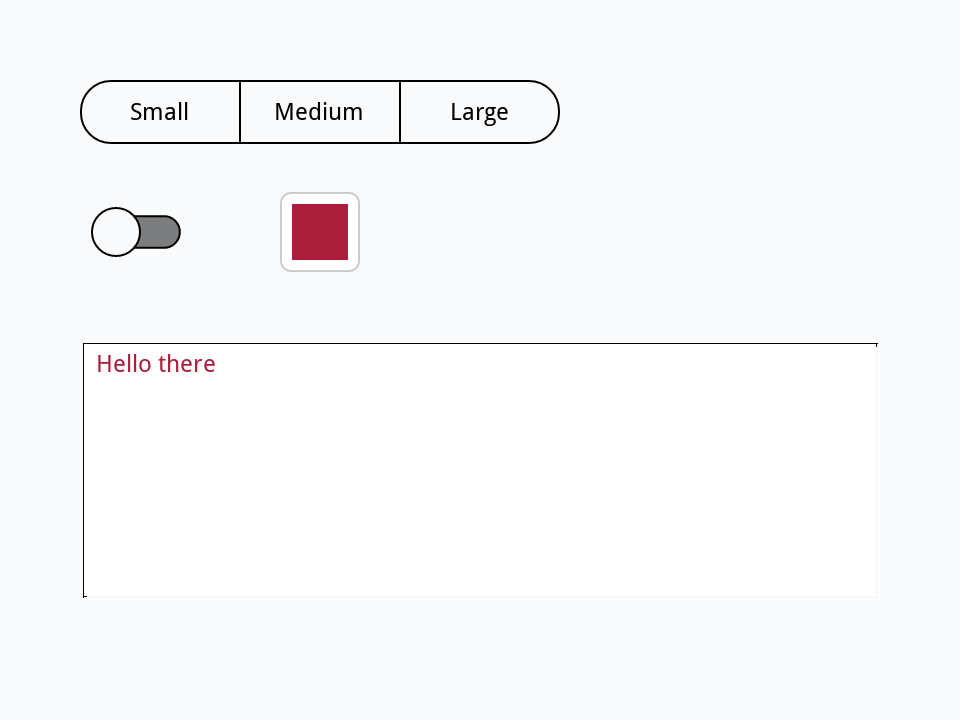
it is empty when the person cancels, so the colour stays as it was. A script can set the swatch's colour as any property:
set the swatchColor of widget "Ink" to "170,30,60"
put the swatchColor of widget "Ink"
set the textColor of field "Sample" to item 1 to 3 of the swatchColor of widget "Ink"
put the textColor of field "Sample"170,30,60,255 170,30,60
A gradient's colours: the Gradient Ramp Editor
A gradient, a colour that fades into others across a graphic (Graphics and images), has stops: at each point along it, a colour. The Gradient Ramp Editor is the strip the Property Inspector shows for a gradient, where the stops can be dragged and recoloured. Its gradientStops are a line a stop, its place from 0 to 1 and then its red, green, blue and alpha, which is how a graphic's fillGradient["ramp"] holds them too:
create widget "Ramp" as "com.livecode.widget.gradientrampeditor"
set the rect of it to 40, 30, 440, 80
set the gradientStops of it to "0,255,122,0,255" & return & "0.5,255,214,0,255" & return & "1,0,170,160,255"

create graphic "Sky"
set the style of it to "roundrect"
set the filled of it to true
set the rect of it to 40, 110, 440, 300
set the fillGradient["type"] of it to "linear"
set the fillGradient["from"] of it to 40, 205
set the fillGradient["to"] of it to 440, 205
set the fillGradient["via"] of it to 40, 110
set the fillGradient["ramp"] of it to the gradientStops of widget "Ramp"
put the number of lines of the fillGradient["ramp"] of graphic "Sky"3
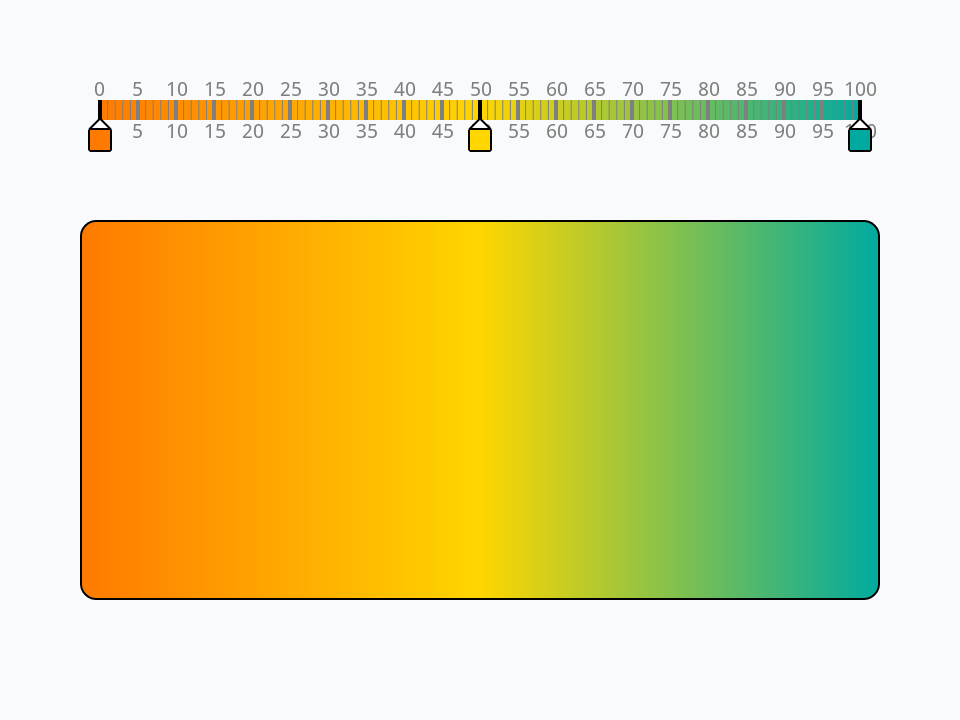
When someone drags a stop, the editor sends gradientStopsChanged; a handler of it that copies the stops to the graphic, as the last line here does, makes a live gradient designer.
Please wait: the Spinner
The Spinner is a ring of marks that turns for as long as it is shown, the sign that a program is busy. Show it before something slow and hide it after; markerCount is the number of its marks. It only turns while the program waits with messages, so in a long loop of your own, wait 0 milliseconds with messages now and then lets it move:
create widget "Busy" as "com.livecode.widget.spinner"
set the rect of it to 220, 160, 260, 200
set the markerCount of it to 12
show widget "Busy"
put 0 into tTotal
repeat with tIndex = 1 to 100000
   add tIndex to tTotal
   if tIndex mod 10000 is 0 then wait 0 milliseconds with messages
end repeat
hide widget "Busy"
put tTotal
put the visible of widget "Busy"5000050000 false
Try it yourself
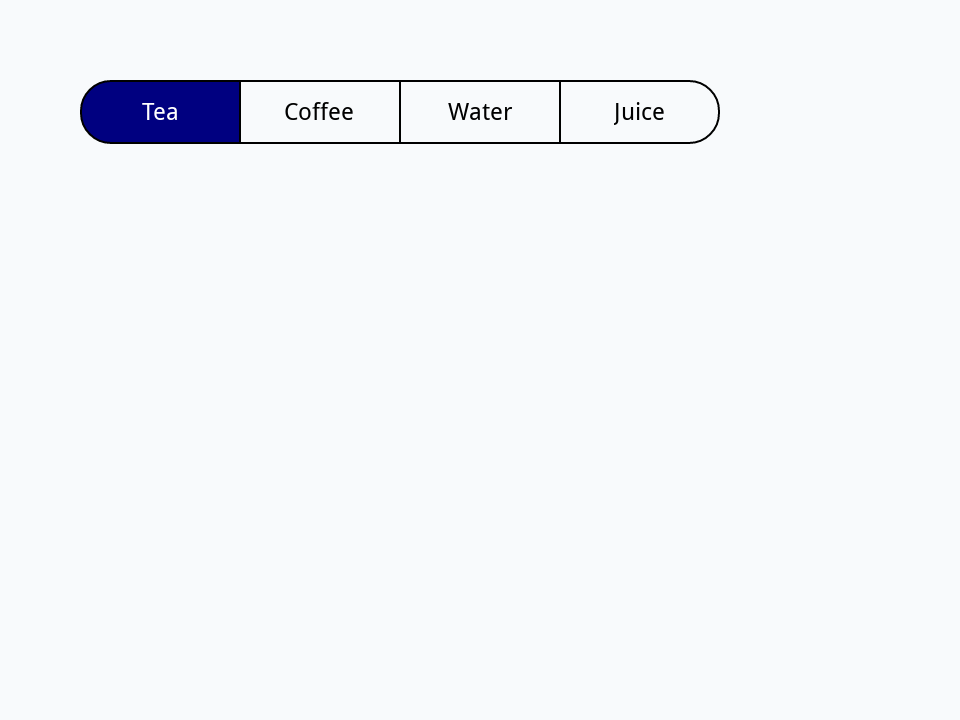
Write a command makeChoice that takes a name and a list of labels, such as "Tea,Coffee,Water", and makes a Segmented Control with that name and one segment a label, with the first one lit.
Show a solution
command makeChoice pName, pLabels
   create widget pName as "com.livecode.widget.segmented"
   set the itemCount of it to the number of items of pLabels
   set the itemLabels of it to pLabels
   set the hilitedItems of it to 1
   set the rect of it to 40, 40, 40 + 80 * the number of items of pLabels, 72
end makeChoice

makeChoice "Drink", "Tea,Coffee,Water,Juice"
put the itemCount of widget "Drink"
put the hilitedItems of widget "Drink"4 1
Words in this lesson
widgetSegmented ControlitemLabelsitemNameshilitedItemshilitedItemNamesmultipleHiliteshiliteChangedSwitch ButtonhighlightColor SwatchswatchColoranswer colorGradient Ramp EditorgradientStopsfillGradientSpinnerEach one finds every lesson that uses it. The Dictionary has the whole story of each, with its syntax and more examples.