Properties of your own
Besides the properties xTalk gives every object, an object can hold custom properties: any name you choose, any value you like. You set and read them exactly like built-in ones. The usual habit is to start their names with c (or u, for "user"), so they never clash with a property xTalk may add one day.
- On a new card, drag a Standard Button and name it
Lamp.
set the cIsOn of button "Lamp" to true
set the cWatts of button "Lamp" to 60
put the cIsOn of button "Lamp"
put the cWatts of button "Lamp" * 2
put "[" & the cColour of button "Lamp" & "]"true 120 []
A custom property nobody has set is simply empty. Select the button and open the Property Inspector's Custom Properties section: cIsOn and cWatts are listed there with their values, and you can add, change and delete custom properties by hand too.
Why not a variable?
A variable lasts no longer than the program runs (Where variables live). A custom property belongs to its object, so it is saved with the stack: close the stack, open it next week, and the value is still there. That makes custom properties the natural place for:
- settings and preferences:
the cSoundOn of this stack - the state of an object: how many times a button was clicked, which page a book was left open at
- data an object carries: the price of a product card, the answer to a quiz question
- On a new card, drag a Standard Button, make it about 200 points wide and 50 high, and name it
Counter.
on mouseUp
   set the cClicks of me to the cClicks of me + 1
   set the label of me to "Clicked" && the cClicks of me && "times"
   put the cClicks of me
end mouseUp1 2 3 4
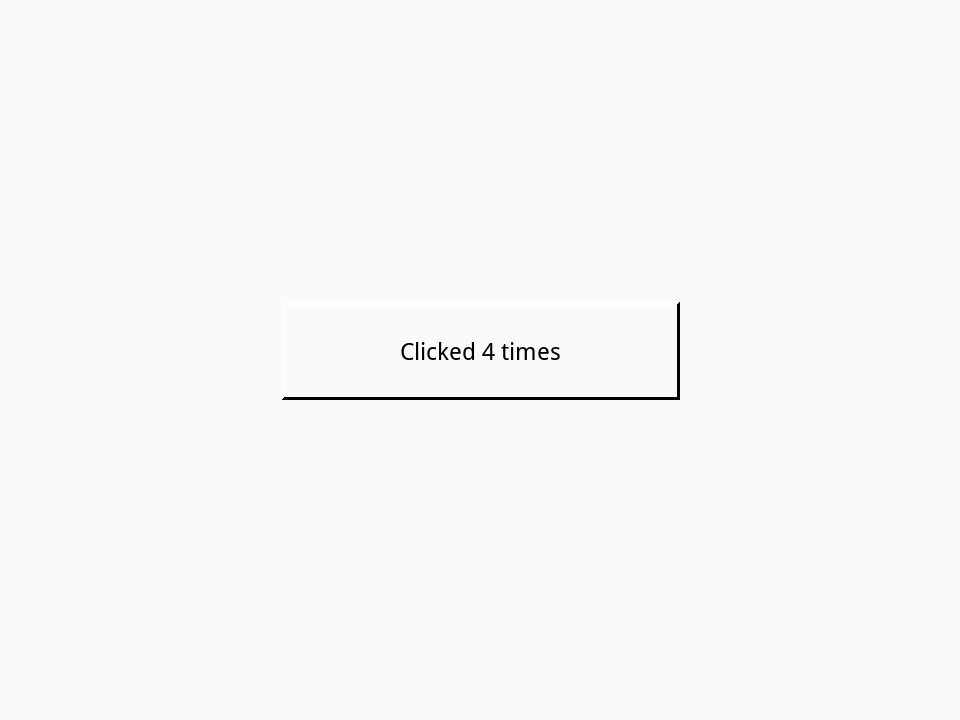
The first click finds cClicks empty, which counts as 0 in a sum. The count lives in the button, not in a variable of the script: save the stack (File > Save), close it, open it again, and the next click says 5.
Listing them
the customKeys of an object lists the names of its custom properties, and the customProperties gives them all as an array. Setting the customProperties to an array replaces them all at once:
- On a new card, drag a Standard Button and name it
Product.
on mouseUp
   put "Teapot" into tProps["cName"]
   put 24.5 into tProps["cPrice"]
   set the customProperties of me to tProps
   put the customKeys of me into tKeys
   sort tKeys
   put tKeys
end mouseUpcName cPrice
After the click, put the cPrice of button "Product" in the Message Box says 24.5.
Properties with keys
A custom property can be read and set a key at a time, which groups related values under one name. The group is called a custom property set: the customProperties with its name gives the whole set as an array, and the customKeys with its name lists its keys.
- On a new card, drag a Standard Button and name it
Book.
set the cInfo["title"] of button "Book" to "Alice"
set the cInfo["year"] of button "Book" to 1865
put the cInfo["title"] of button "Book"
put the cInfo["year"] of button "Book"
put the number of lines of the customKeys["cInfo"] of button "Book"Alice 1865 2
Switching sets
An object can have several sets, and its customPropertySet says which one plain the cName reads and writes. One use is translation: a set for each language, with the same names in each, and the stack switches between them.
- On a new card, drag a Standard Button and name it
Greeting.
set the customPropertySet of button "Greeting" to "French"
set the cHello of button "Greeting" to "Bonjour"
set the customPropertySet of button "Greeting" to "English"
set the cHello of button "Greeting" to "Hello"
put the cHello of button "Greeting"
set the customPropertySet of button "Greeting" to "French"
put the cHello of button "Greeting"Hello Bonjour
The Inspector's Custom Properties section has a menu of the object's sets, to look at each one.
The other side of the coin
Because any unknown name makes a custom property, a misspelled built-in property quietly creates one instead of failing, as Properties showed. The c at the front of your own names helps here too: a property without it should be one of xTalk's.
And when a property should be worked out each time it is read, rather than stored, a getprop handler can answer for it: the lesson Virtual properties shows how.
Try it yourself
On a new card, drag three Standard Buttons for products, Pen, Notebook and Bag, and give each a cPrice in the Inspector's Custom Properties: 1.5, 4 and 25. Then add a fourth button, Total, whose script goes through the buttons and puts the total price.
- Drag three Standard Buttons in a row and name them
Pen,NotebookandBag. - For each, in the Property Inspector's Custom Properties, add a property
cPrice: 1.5 for the pen, 4 for the notebook and 25 for the bag. - Drag a fourth Standard Button under them and name it
Total.
Show a solution
on mouseUp
   put 0 into tTotal
   repeat with i = 1 to the number of buttons
      add the cPrice of button i to tTotal
   end repeat
   put tTotal
end mouseUp30.5
The button Total has no cPrice, and an empty value adds nothing.
Words in this lesson
Each one finds every lesson that uses it. The Dictionary has the whole story of each, with its syntax and more examples.