Everything is a message
When the user does something, xTalk tells the object it happened to by sending it a message: a word such as mouseUp, keyDown or openCard. If the object's script has a handler with that name, the handler runs. If not, nothing visible happens, and the message moves on (the next lesson follows where it goes).
This is the heart of every xTalk program: you do not write a main loop that waits for clicks. You write small handlers, put each in the object it belongs to, and xTalk calls them at the right moment.
A button with a script
You have already written one handler: the button in Stacks, cards and controls. Here is the smallest one there is.
- On a new card, drag a Standard Button and name it
Hello. - Open its script (Object > Object Script) and type the handler below, then press Apply.
on mouseUp
   put "Hello from the button"
end mouseUpHello from the button
In Run mode, the click sends mouseUp to the button, and its handler runs. A script, or you in the Message Box, can send a message to an object just as a click would, and read an object's script, which is a property like any other:
send "mouseUp" to button "Hello"
put the number of lines of the script of button "Hello"Hello from the button 3
Messages you will meet
| Message | Sent to | When |
|---|---|---|
mouseDown, mouseUp | the control under the mouse | a mouse button goes down, and comes up again over the same control (a click) |
mouseDoubleUp | the control | a double click |
mouseEnter, mouseLeave | the control | the pointer moves onto it, and off it |
mouseMove | the control under the pointer | the pointer moves (with its position) |
keyDown, returnInField | the field being typed in | a key is typed (with the character), Return is pressed |
openField, closeField | a field | the user starts editing it, and leaves it after a change |
openCard, closeCard | the card | a card appears, or is left |
preOpenStack, openStack | the first card | a stack opens: before it is shown, then after |
resizeStack, closeStack | the card | the window is resized, or closed |
Messages that carry a value
Some messages come with information, which arrives in the handler's parameters: mouseUp says which mouse button was used (1 is the main one), and keyDown which key was typed.
- On a new card, drag a Standard Button and name it
B. - Drag a Field under it and name it
Typing.
on mouseUp pWhich
   put "mouseUp with button" && pWhich
end mouseUpmouseUp with button 1
Now give the field this script. In Run mode, click into the field and type: each key shows in the Message Box, and pass keyDown lets it on into the field. To try it without typing, send the field a keyDown from the Message Box:
on keyDown pKey
   put "typed" && pKey
   pass keyDown
end keyDownsend "keyDown x" to field "Typing"
send "keyDown 7" to field "Typing"typed x typed 7
One handler, many controls
A control with no handler for a message lets it go on to its card and then its stack (The message path follows it all the way). So a handler in the card's script hears the clicks of every button that does not handle them itself, and the target says which one it was:
- On a new card, drag two Standard Buttons side by side, and make each about 140 points wide and 50 high. Name them
LeftandRight. - In the Property Inspector's Basic section, set the Label of each to
0. Leave the buttons' scripts empty. - Open the card's script with Object > Card Script.
on mouseUp
   if word 1 of the name of the target is "button" then
      set the label of the target to the label of the target + 1
   end if
   put the label of button "Left" && the label of button "Right"
end mouseUp1 0 2 0 3 0 3 1
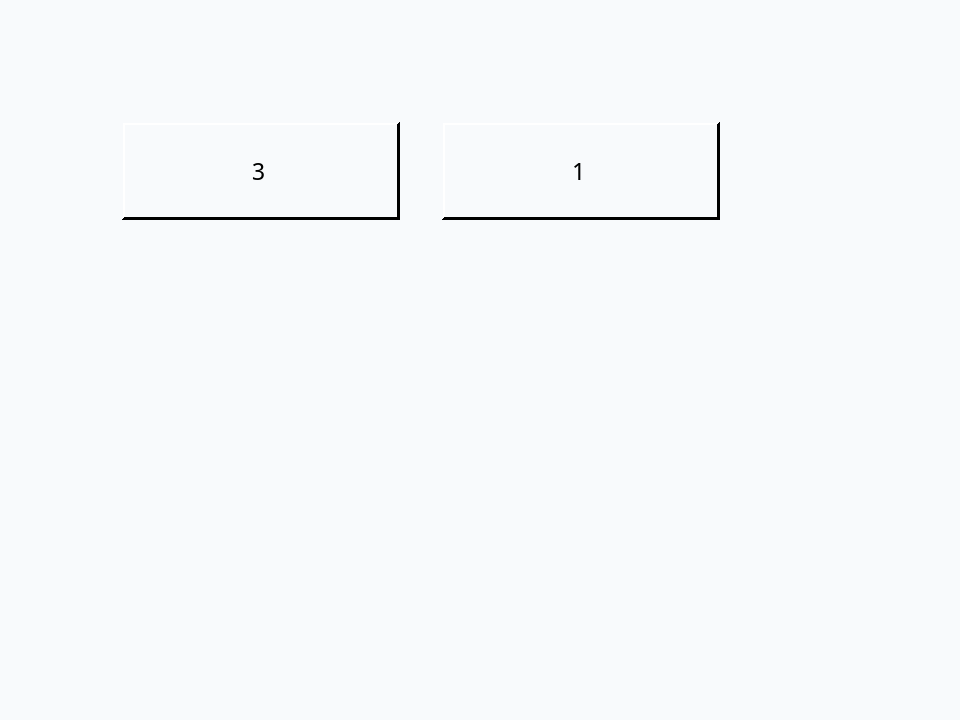
Click Left three times and Right once, and the Message Box counts along. The if leaves the card's own label alone when you click the card between the buttons.
Reacting to the pointer
Here is a script you could give any button: it lights up while the pointer is over it. Drag a Standard Button onto a card, name it Shiny, give it this script, and move the pointer over it in Run mode:
- Drag a Standard Button onto a card and name it
Shiny.
on mouseEnter
   set the backgroundColor of me to "gold"
end mouseEnter

on mouseLeave
   set the backgroundColor of me to empty
end mouseLeave

on mouseUp
   answer "You clicked" && the short name of me
end mouseUp
Setting a colour to empty gives the control back its normal look, inherited from its card and stack.
Messages when a card opens
Going to a card sends it openCard. It is the place for a card to get ready: fill its fields, start a timer, reset a game.
- In your stack, choose Object > New Card, and name the new card
Secondin the Card Inspector (Object > Card Inspector). - Open its script with Object > Card Script.
on openCard
   put "openCard: the card" && the short name of me && "is ready"
end openCard
Now go back and forth with View > Go Prev and View > Go Next, or in the Message Box:
go to card 1
go to card "Second"
go to card 1
go nextopenCard: the card Second is ready openCard: the card Second is ready
Two lines: only arriving at Second sends the message to its script. A handler in the stack's script (Object > Stack Script) would hear every card open, since a card with no openCard handler passes the message on to its stack.
Send and dispatch
send delivers a message as if xTalk had sent it. If no handler anywhere answers it, send stops with an error. On a card with a button B that has no script:
- Drag a Standard Button onto a card and name it
B. Leave its script empty.
send "mouseUp" to button "B"dispatch is the polite form: it delivers the message if someone handles it, and either way sets it to handled or unhandled, so your script can tell. Give the card a tidyUp handler of your own (a command: the lesson Commands explains them), and a button that dispatches it and a message nothing handles:
- Drag a Standard Button onto a card and name it
B. - Put the first script below in the card's script (Object > Card Script), and the second in the button's.
on tidyUp
   put "tidying up"
end tidyUpon mouseUp
dispatch "refresh" to me
put it into tFirst
dispatch "tidyUp" to me
put tFirst && "then" && it
end mouseUpunhandled then handled
Nothing answers refresh, and that is fine. tidyUp goes from the button on to the card, whose handler runs (its put is replaced in the Message Box by the last one).
Try it yourself
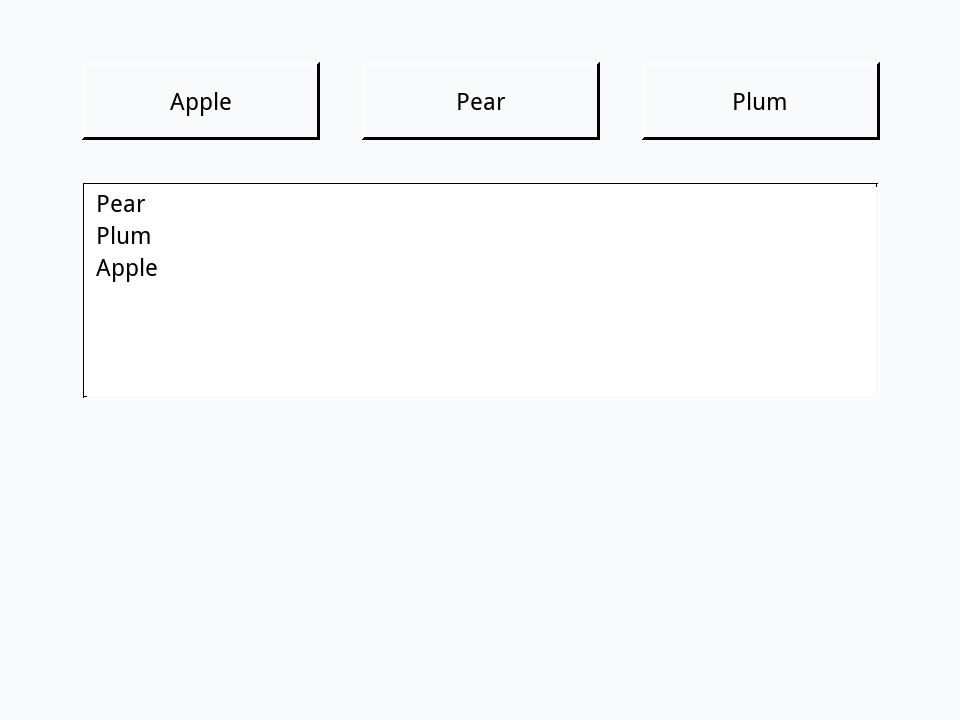
On a new card, drag a Field named Log and three Standard Buttons named Apple, Pear and Plum. Write one mouseUp handler, in the card's script, that adds the name of the button clicked as a new line of the field, and puts which line it is. Then click Pear, Plum and Apple.
- Drag three Standard Buttons in a row, about 120 points wide, and name them
Apple,PearandPlum. - Drag a Field below them, make it big, and name it
Log.
Show a solution
on mouseUp
   if word 1 of the name of the target is not "button" then exit mouseUp
   if field "Log" is not empty then put return after field "Log"
   put the short name of the target after field "Log"
   put the short name of the target && "is line" && the number of lines of field "Log"
end mouseUpPear is line 1 Plum is line 2 Apple is line 3
Words in this lesson
messagehandlermouseUpmouseDownmouseEntermouseLeavekeyDownopenCardthe targetsenddispatchcard scriptset the script ofEach one finds every lesson that uses it. The Dictionary has the whole story of each, with its syntax and more examples.