A web page in a card
The Browser widget is a whole web browser in a rectangle of the card: it shows pages from the internet, runs their JavaScript, follows their links and plays their videos. Build a card with one:
- Make a new stack, or go to an empty card. In Edit mode, drag a classic Field to the top of the card, stretch it from edge to edge, make it one line high, and name it
Address. - Drag a Browser from the widgets of the Tools palette below it, make it fill the rest of the card, and name it
Web.
The page it shows is its url. Put this in the Address field's script, so that typing an address and pressing Return goes there, as a browser's address bar does:
on returnInField
   local tAddress
   put word 1 to -1 of me into tAddress
   if tAddress is empty then exit returnInField
   if "://" is not in tAddress then put "https://" before tAddress
   set the url of widget "Web" to tAddress
end returnInField
In Run mode, type example.com in the field and press Return. The page is drawn by the system on top of the card, so keep other controls out from under the widget: where they overlap, they cannot be seen.
What happens in the page
The page loads on its own, while your scripts go on, and the widget sends messages as it does: browserNavigateBegin when it starts to go to a new address, whether a script set it or someone clicked a link; browserDocumentLoadComplete when the page is there; and browserDocumentLoadFailed, with the reason, when it could not be loaded. Each comes with the page's address. Put this in the Browser widget's script, to keep the Address field up to date and say when a page fails:
on browserNavigateBegin pUrl
   put pUrl into field "Address"
end browserNavigateBegin

on browserDocumentLoadComplete pUrl
   set the title of this stack to pUrl
end browserDocumentLoadComplete

on browserDocumentLoadFailed pUrl, pError
   put "Could not open" && pUrl & ":" && pError into field "Address"
end browserDocumentLoadFailed
Click a link in the page and the field follows it, because the click starts a new navigation as typing an address does.
A page of your own
The widget shows HTML you make as readily as a page from the internet: set its htmlText and it shows that, with no address at all. HTML is a good way to show a list or a table with styles, links and pictures, and a script can make it from your data. Here is a function that makes a page of names, each a line of a list:
function peoplePage pNames
local tPage, tName
put "<h2>People</h2><ul>" into tPage
repeat for each line tName in pNames
replace "&" with "&" in tName
replace "<" with "<" in tName
put "<li onclick='liveCode.personClicked(this.textContent)'>" & tName & "</li>" after tPage
end repeat
return tPage & "</ul>"
end peoplePage
put peoplePage("Ada" & return & "Tom & Jerry")<h2>People</h2><ul><li onclick='liveCode.personClicked(this.textContent)'>Ada</li><li onclick='liveCode.personClicked(this.textContent)'>Tom & Jerry</li></ul>
The two replace lines write & and < the way HTML needs them, so a name with one in it shows as it is, rather than being read as HTML. Each line of the list also says what happens when it is clicked: liveCode.personClicked, with the line's text.
The page and your scripts
JavaScript in a page can call handlers of yours, but only those you name in the widget's javascriptHandlers, a line each. Each becomes a function of a JavaScript object named liveCode, and calling it sends the message, with what it was given, to the widget, from where it goes on to the card and the stack as any message does. Put peoplePage in the stack's script, with these:
on openCard
   set the javascriptHandlers of widget "Web" to "personClicked"
   set the htmlText of widget "Web" to peoplePage("Ada" & return & "Grace" & return & "Alan")
end openCard

on personClicked pName
   put "You chose" && pName into field "Address"
end personClicked
Go to the card again in Run mode, and click a name. The other way round, do runs JavaScript in the page: do "document.body.style.background = 'lightyellow'" in widget "Web" colours its background. A page that can call your handlers can do whatever they do, so name only handlers that are safe for it to call, and only for pages you made.
Native buttons and fields
A classic button looks much the same on every system. A native widget is the system's own control, drawn and worked by the system, so it looks and behaves exactly as the rest of the system does. There are native buttons for the Mac, iOS, Android and HTML5, and native one-line fields for the Mac and Android. Each is the real thing only on its own system; anywhere else it is a grey stand-in with the system's logo and its label, or a field's name, so a card for the Mac can be laid out on any computer:
create widget "Save" as "com.livecode.widget.native.mac.button"
set the label of it to "Save"
set the rect of it to 20, 20, 220, 100
create widget "Name" as "com.livecode.widget.native.mac.textfield"
set the text of it to "Ada"
set the rect of it to 20, 120, 220, 160
create widget "Open" as "com.livecode.widget.native.emscripten.button"
set the label of it to "Open"
set the rect of it to 20, 180, 220, 260
create widget "Send" as "com.livecode.widget.native.ios.button"
set the label of it to "Send"
set the rect of it to 260, 20, 460, 100
create widget "Share" as "com.livecode.widget.native.android.button"
set the label of it to "Share"
set the rect of it to 260, 120, 460, 200
put the platform
put the label of widget "Save"
put the text of widget "Name"Linux Save Ada
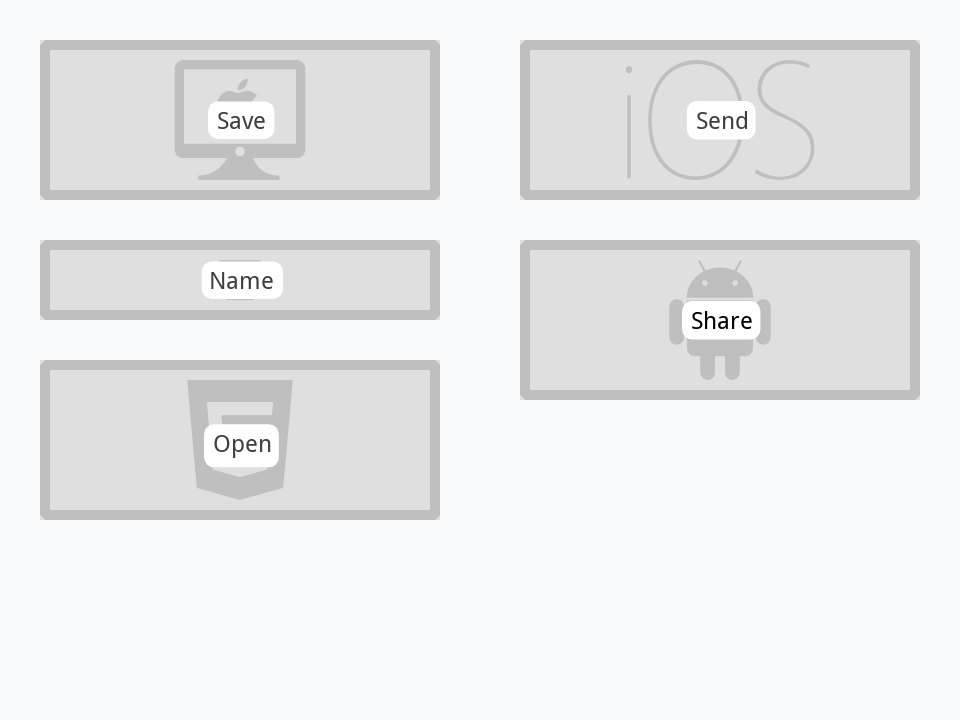
A native button sends mouseUp when it is clicked, as any button does, and its label is its text. A native field's text is its text, and the Mac's sends returnKey when Return is pressed in it. On a phone a native field brings up the system's own keyboard, and the Android one has properties for which keyboard, such as keyboardType.
Try it yourself
A card has a native Mac button and a classic button that do the same thing. Write a command showButtons that shows the native one only on a Mac and the classic one everywhere else, to call as the card opens.
Show a solution
command showButtons
   set the visible of widget "Mac Save" to the platform is "MacOS"
   set the visible of button "Save" to the platform is not "MacOS"
end showButtons

create widget "Mac Save" as "com.livecode.widget.native.mac.button"
set the label of it to "Save"
create button "Save"
showButtons
put the visible of widget "Mac Save"
put the visible of button "Save"false true
Words in this lesson
BrowserurlhtmlTextbrowserNavigateBeginbrowserDocumentLoadCompletebrowserDocumentLoadFailedjavascriptHandlersliveCodedo in widgetnative buttonnative fieldMac Native ButtoniOS Native ButtonAndroid Native ButtonHTML5 Native ButtonlabelreturnKeythe platformEach one finds every lesson that uses it. The Dictionary has the whole story of each, with its syntax and more examples.